


In our previous article, we explained that "Companies not registered on Google My Business are actually at a disadvantage."
In this article, we'll show you the steps for actually registering with Google My Business.
It's very simple, so if you haven't registered yet, follow along with these steps.
How to register with Google My Business
1. Go to the Google My Business sign-up start page
First, go to the Google My Business sign-up start page.
https://www.google.co.jp/business/get-started.html
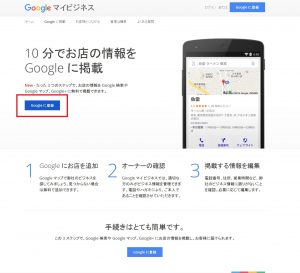
2. Click the blue "Register with Google" button
There is a blue "Register with Google" button, so click it.

3. Fill in the fields
When you click the "Register with Google" button, a page for entering information like this will appear, so fill in each field.

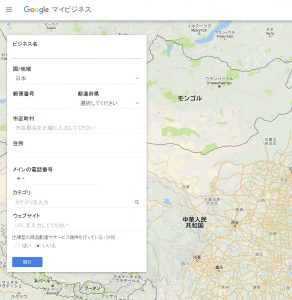
4. Once you've filled everything in, click the blue "Continue" button
When you've finished filling in the fields, click the blue "Continue" button at the bottom of the page.


5. A screen to verify that you're the owner will appear, so click the blue "Continue" button
Sorry, we don't have a screenshot for this step.
A screen to verify that you're the owner will appear, so read the terms of service and click the blue "Continue" button.
6. A screen asking whether it's OK to send a verification code by postcard for owner verification will appear, so click the blue "Mail" button
Sorry, we don't have a screenshot for this step either.
A screen asking whether it's OK to send a verification code by postcard for owner verification will appear, so check the address shown and click the blue "Mail" button.
7. When the verification code arrives by postcard, log in to Google My Business again and submit the verification code
In about one to two weeks, a postcard with the verification code will be sent to the address you confirmed in step 6.
The instructions are also written on the postcard, but once it arrives, log in to Google My Business again and submit the verification code.


That completes your registration with Google My Business.


