


There are several ways to improve your website's search rankings, and one of them is to [have other websites link to yours]—in other words, to [earn backlinks].
This means getting links from websites that have a similar theme and a high degree of relevance to your own, or from popular websites.
Conversely, backlinks from sites with low relevance or a poor reputation can actually be a factor in lowering your rankings.
Put simply, what's important is to "earn plenty of links from good websites and eliminate links from bad ones."
- You must eliminate links from bad websites!
- You can check and manage your backlink situation with Google Search Console
- ❶ Access Search Console
- ❷ Check your backlink situation
- ❸ Check your backlink situation
- ❹ Select a download format
- ❺ Edit the list of backlinks to disavow
- ❻ Save the file in text format
- ❼ The list of backlinks to disavow has been saved
- ❽ Open the edited text file and check it
- ❾ Open the Disavow Links page
- ❿ The Disavow Links screen
- ⓫ Select the disavow links file
- ⓬ Browse for and select the list of backlinks to disavow
- ⓭ The list of backlinks to disavow has been selected
- ⓮ Confirm that the disavow file has been uploaded
- It takes time for the changes to take effect
You must eliminate links from bad websites!
Getting good or popular websites to link to you is no easy task. That's because, in order for them to link to you, the person managing that website has to feel that your site is "worth linking to."
So how do you remove backlinks from bad websites? That isn't easy either. It would be great if you could ask the administrator of the linking site to remove it, but in some cases it's difficult—you may not even be able to contact the administrator in the first place. Even so, you can't simply leave things as they are. That's why, even if you can't get the link removed, you can eliminate the negative effect by "disavowing" it.
At the very least, you'd want to get rid of the negative elements, wouldn't you?
This time, let us introduce the specific steps for doing just that.
You can check and manage your backlink situation with Google Search Console
From here on, we'll explain while looking at screenshots. This time we'll use this website as an example.
❶ Access Search Console
Once you've accessed Search Console,
① Check the URL of the site in question
② Select Search Traffic

❷ Check the status of your backlinks
① Select "Links to Your Site." The Links to Your Site screen will appear.
② Looking at the list shown under the domains with the most links, some suspicious URLs appear… One is an online shop site with little relevance. Another is an adult site! These must be removed immediately.
③ So, click "More" for details.

❸ Check the status of your backlinks
A list of the pages linking to this website is displayed.
① Click the "Download more sample links" button.

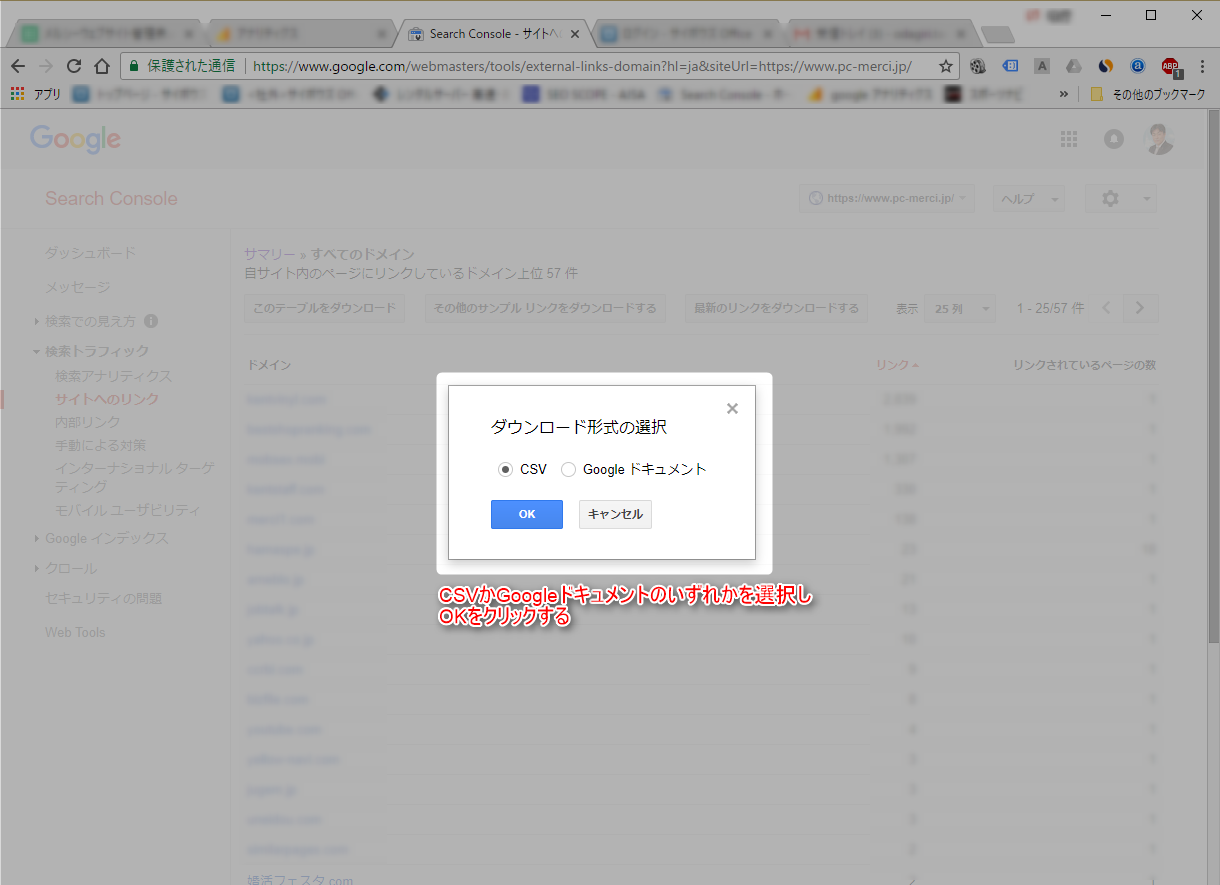
❹ Select the download format
You can choose either CSV or Google Docs. If Excel or similar software is installed on your computer, choose CSV; if not, choose Google Docs.
This time we'll select the CSV format and click the OK button. Browse to any location you like and download the file.
❺ Edit the list of backlinks to disavow
Open the backlink list you downloaded. Here we've opened it in Excel.
Delete from the list any backlinks you do not want to disavow. Edit carefully, checking as you go, so that you don't disavow links you want to keep.

❻ Save the file in text format
Once you've finished editing, choose "Save As."
① Browse to the save location
② Enter a file name. For the file type, select "Text (Tab delimited) (*.txt)."
③ Click Save

❼ The list of backlinks to disavow has been saved

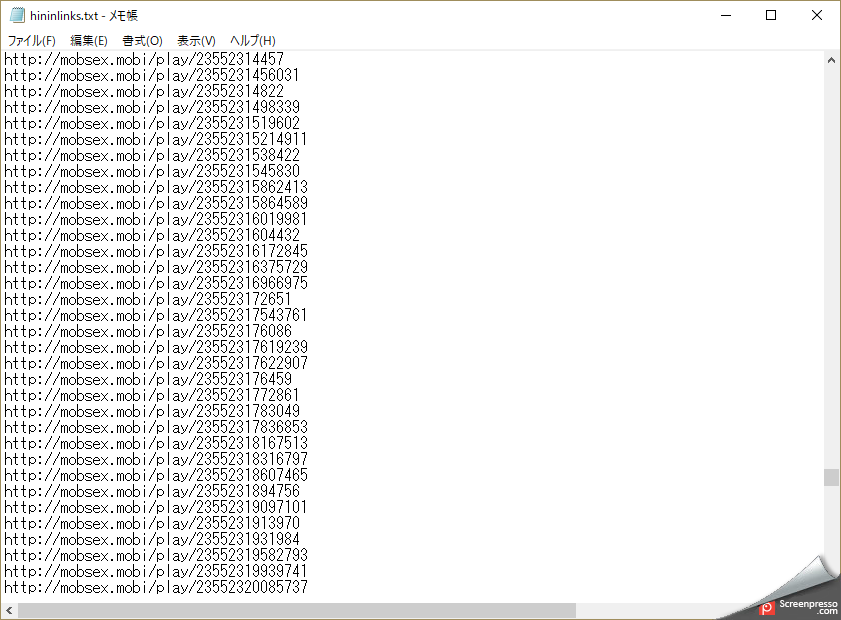
❽ Open the edited file in Notepad to check it
Let's open the text file you edited. Here we'll open it in Notepad.
❾ Open the Disavow Links page
From here, we'll go back to the browser to continue.
① Go to the Disavow Links page: "https://www.google.com/webmasters/tools/disavow-links-main".
② Select the relevant website, then click the Disavow Links button.

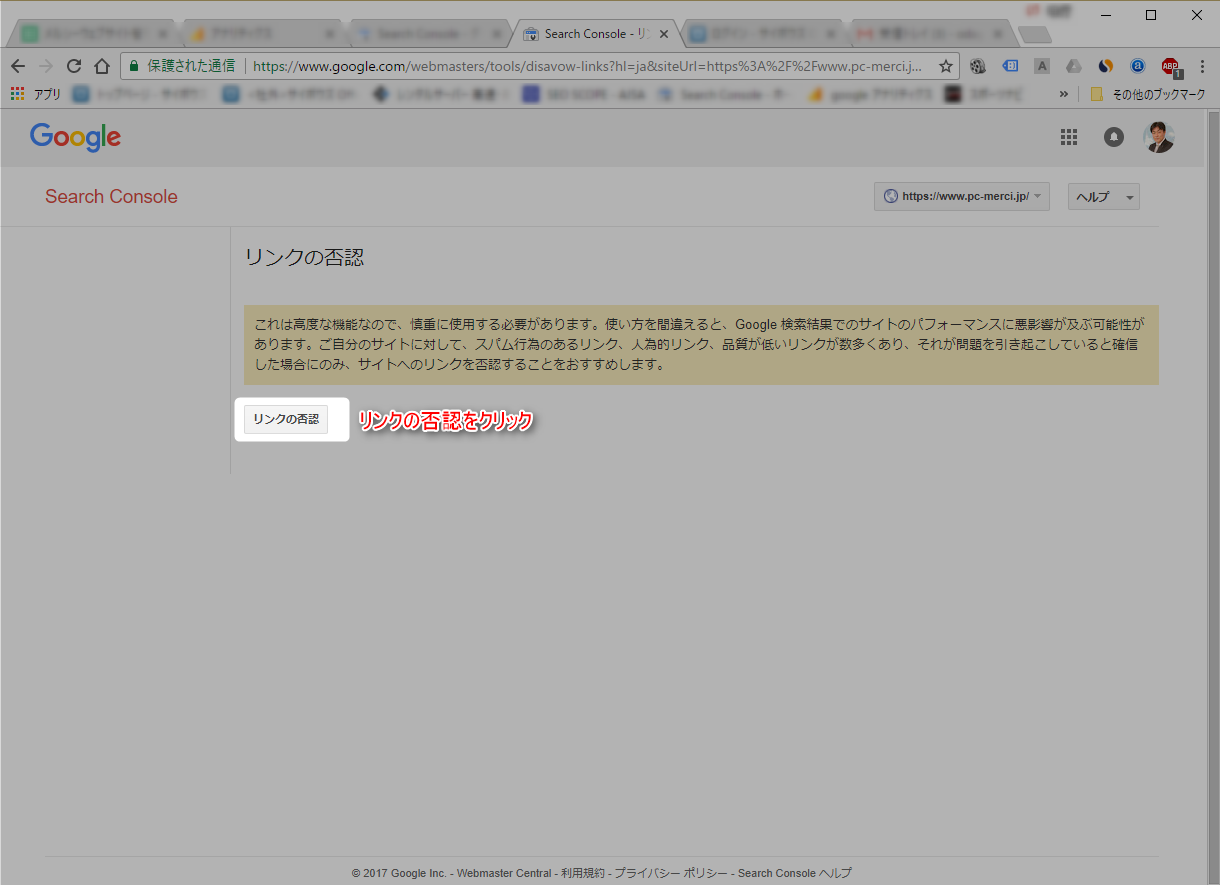
❿ The Disavow Links screen
The Disavow Links screen appears. Click the Disavow Links button.
⓫ Select the disavow file
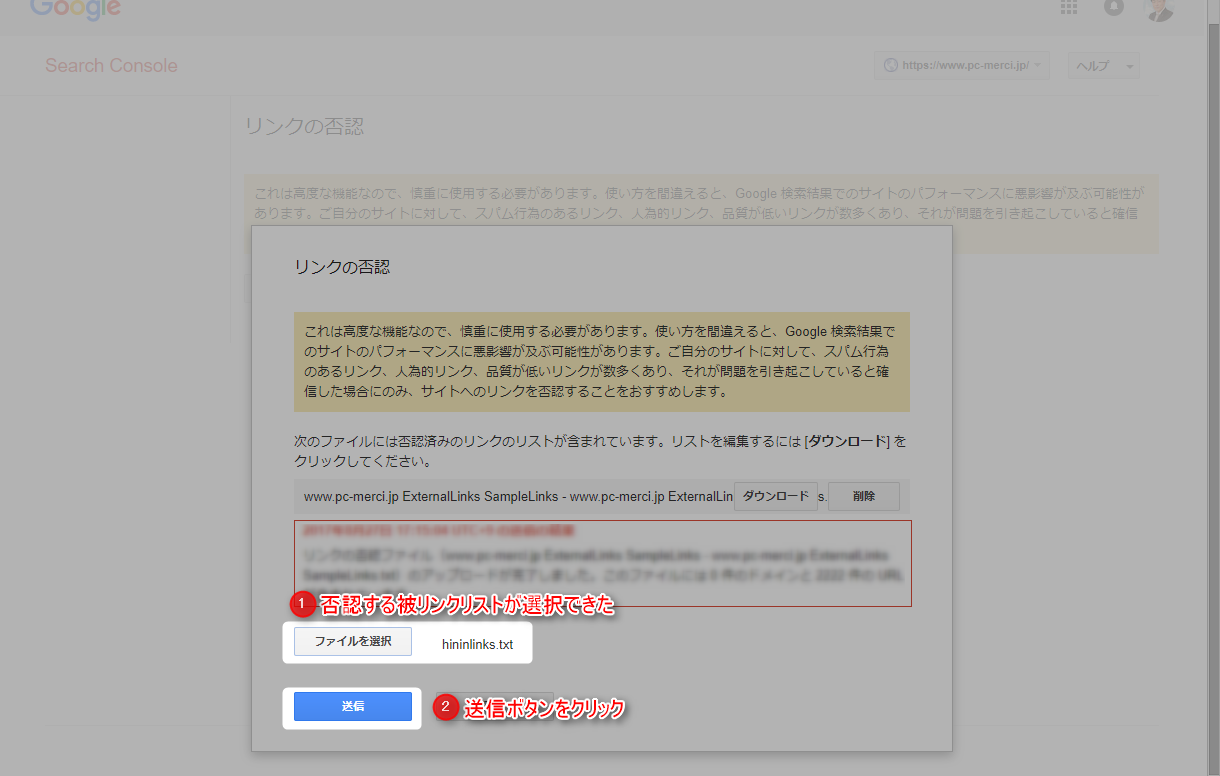
Click "Choose file" to select your disavow file.

⓬ Browse to and select the list of backlinks to disavow
① Browse to the list of backlinks to disavow from ❼.
② Click Open.

⓭ The list of backlinks to disavow has been selected
Once the file has been selected, click the Submit button. That completes the process itself. Click the Done button.
⓮ Confirm that the disavow file has been uploaded
Once you've gone through all the steps, check that the file has been uploaded.
① Select Messages
② If a message such as "Your disavow file has been updated…" is displayed, you're all set.

It takes time to take effect
How was that? The process itself should be easy enough. The one thing to keep in mind is that "it takes time to take effect." According to Google, it can take anywhere from a few days to a few weeks, so check back after some time has passed.
Backlinks—especially negative ones—can be placed without you noticing. It's not something you want to think about, but you can't rule out the possibility that someone with malicious intent may try to lower your website's rankings.
Just in case, it's a good idea to make a habit of checking regularly.


