



A little while ago we introduced "How to Upload Videos Shot on Your Smartphone to YouTube."
This time, we'll show you how to create a playlist (channel) on YouTube once you've built up several videos.
Just like uploading videos, this is very easy to do, so give it a try and organize your videos so they're easier to watch.
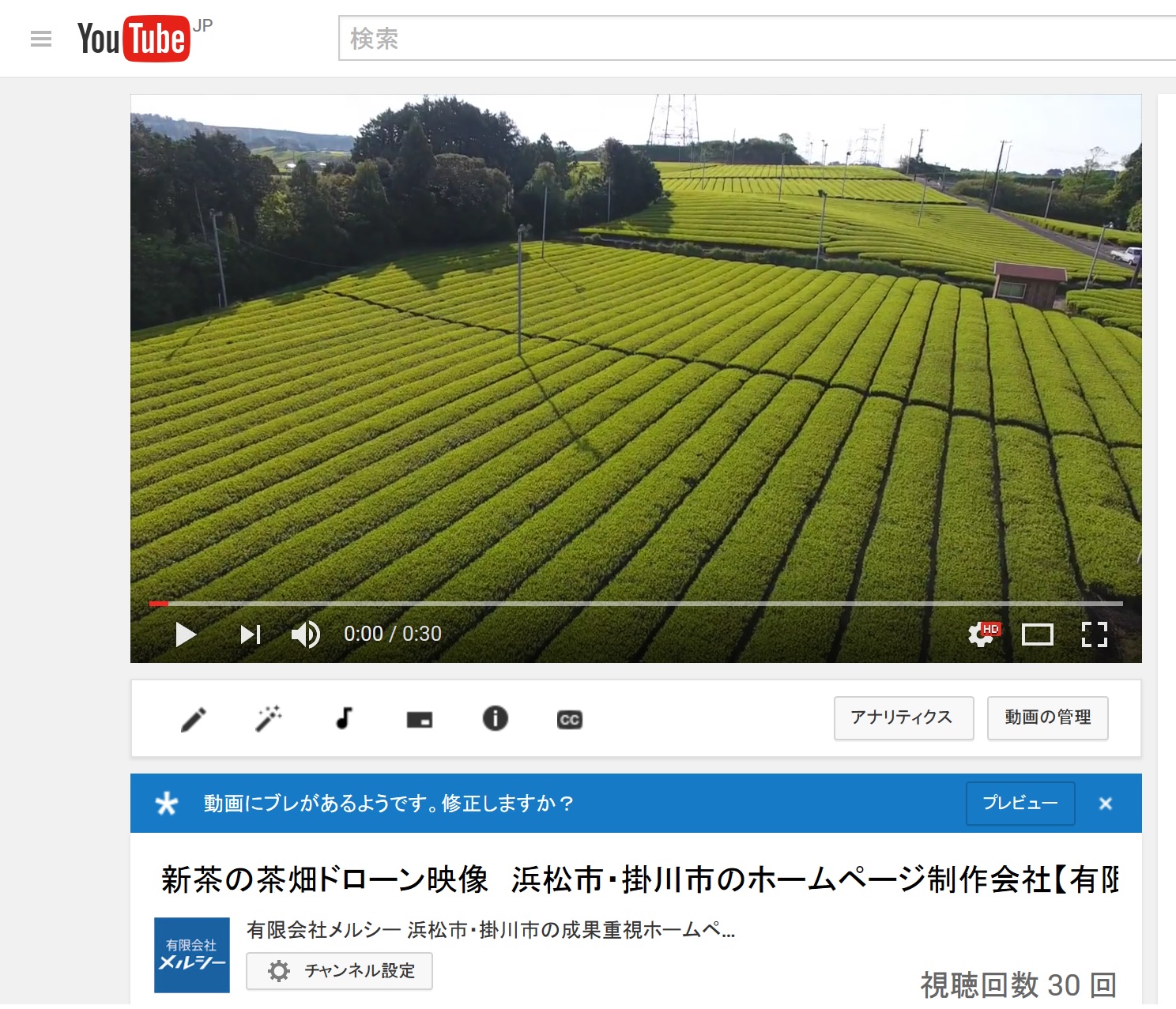
1. Open the page of the video you want to add to a playlist
First, open the page of the video you want to add to a playlist.
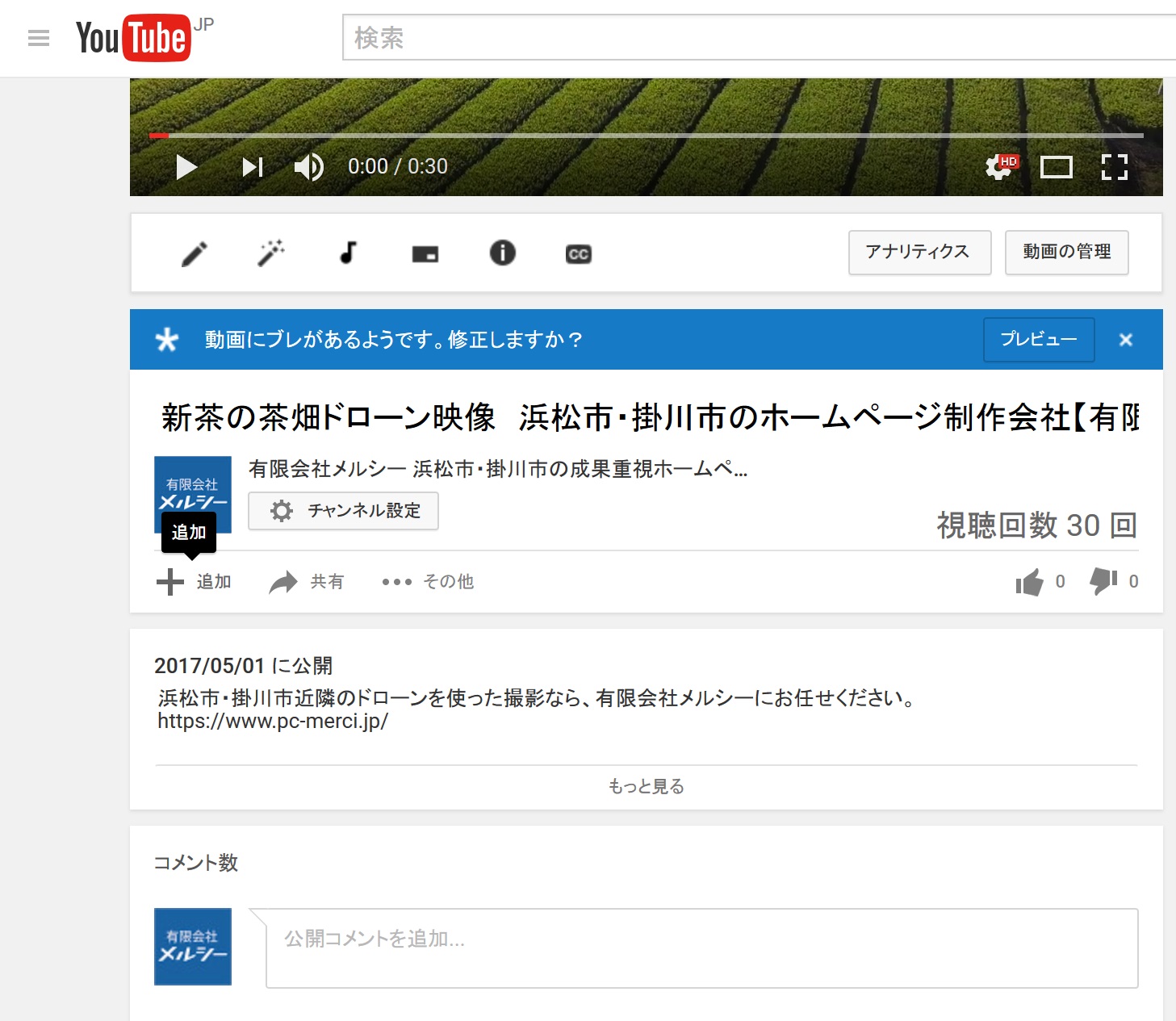
2. Press the "+ Add" button below the video
Below the video there are buttons labeled "+ Add," "→ Share," and "… More." Press the "+ Add" button.
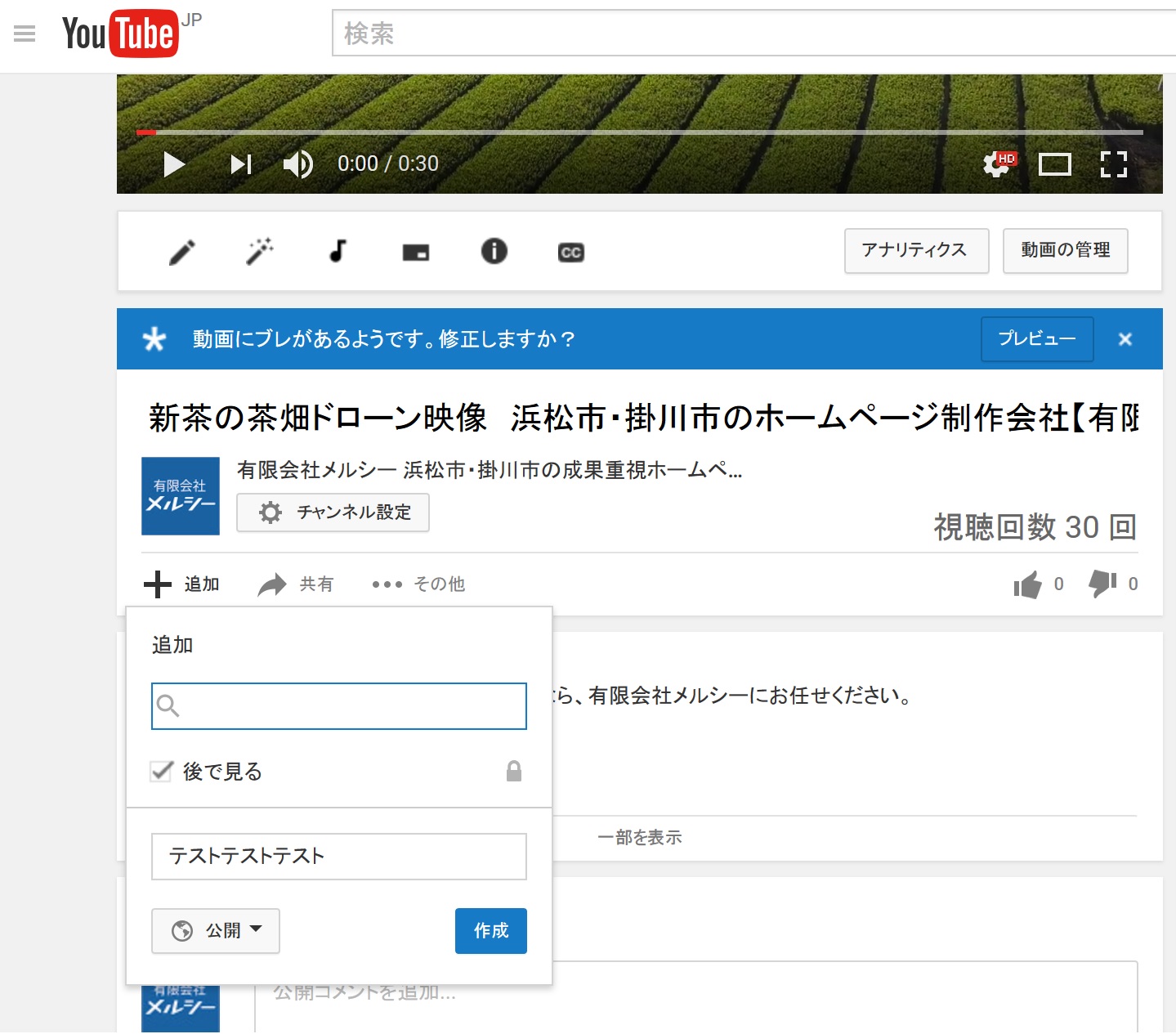
3. Press "Create new playlist"
When you press the "+ Add" button, a small window will appear with a "Create new playlist" option. Click on it.

4. Enter a name for the playlist and press the "Create" button
There is a field for entering the playlist name, so type in any name you like and press the blue "Create" button.
Your playlist is now complete.
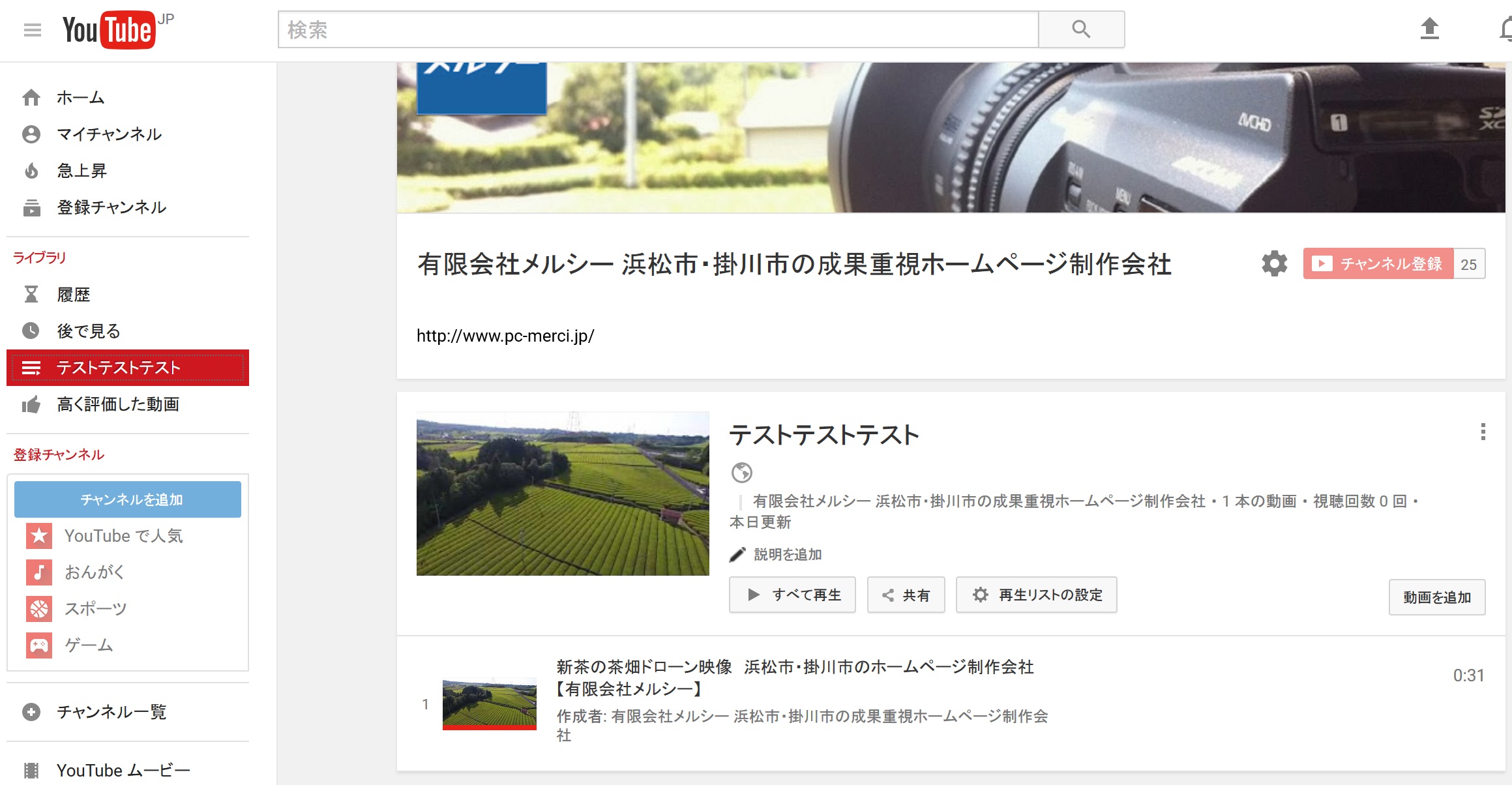
Then, to view the playlist, open the menu (three lines) to the left of the YouTube logo in the upper left of the screen and click the name of the playlist you want.
The playlist will open, and clicking "Play all" will play the videos one after another.
If you want to play your favorite videos or music continuously, creating a playlist this way is very handy.
If you want to add a video to an existing playlist, follow the steps up to 2, then in step 3 select the name of the playlist you want to add it to.
If you want to post a link to your playlist on a blog or elsewhere, simply set the privacy setting to "Public" and paste the URL.
Make the most of playlists and enjoy your video life!
* In addition to producing YouTube videos, Merci Co., Ltd. also supports video uploading, embedding videos on websites, and channel creation.If you need help with video production or making the most of YouTube, feel free to contact us via our inquiry form or by phone at 0120-413-756 ^^!


