


Hello. This is Ochiai, the designer.
Today I'd like to introduce how to back up your iPhone, something my acquaintances often ask me about.
Are you backing up your iPhone properly?
When an iPhone is repaired, the device itself may be replaced, and if you haven't made a backup, all of your data will be lost.
I often hear people say things like "I don't have a computer, so I can't back up my data..." but you can still make a proper backup even without a computer.
There are two types of iPhone backups
There are two ways to back up an iPhone.
One is backing up over the internet.
The other is backing up using a computer.
Today I'd like to introduce how to back up over the internet.
Recommended for those without a computer or who aren't good with computers
When you back up over the internet, no computer operation is required.
Also, when you switch to a new iPhone, you can easily transfer your data simply by entering your ID and password.
That said, the amount of data you can back up over the internet is limited.
First, let's check just how much storage you're currently using.
How to check your data usage
Open the Settings app on your iPhone. Next, tap "General" → "iPhone Storage & iCloud Usage."


A screen like this will appear. The "Used" portion of the storage shows the amount of data you are currently using.
To back up over the internet, you need enough capacity to fit all of that.
You can use up to 5GB for free.
iPhones use a cloud storage service called iCloud.
Everyone who uses an iPhone gets cloud storage they can use for free, but only up to 5GB.
If you don't use your smartphone much, 5GB may be enough, but I think it won't be enough for most people.
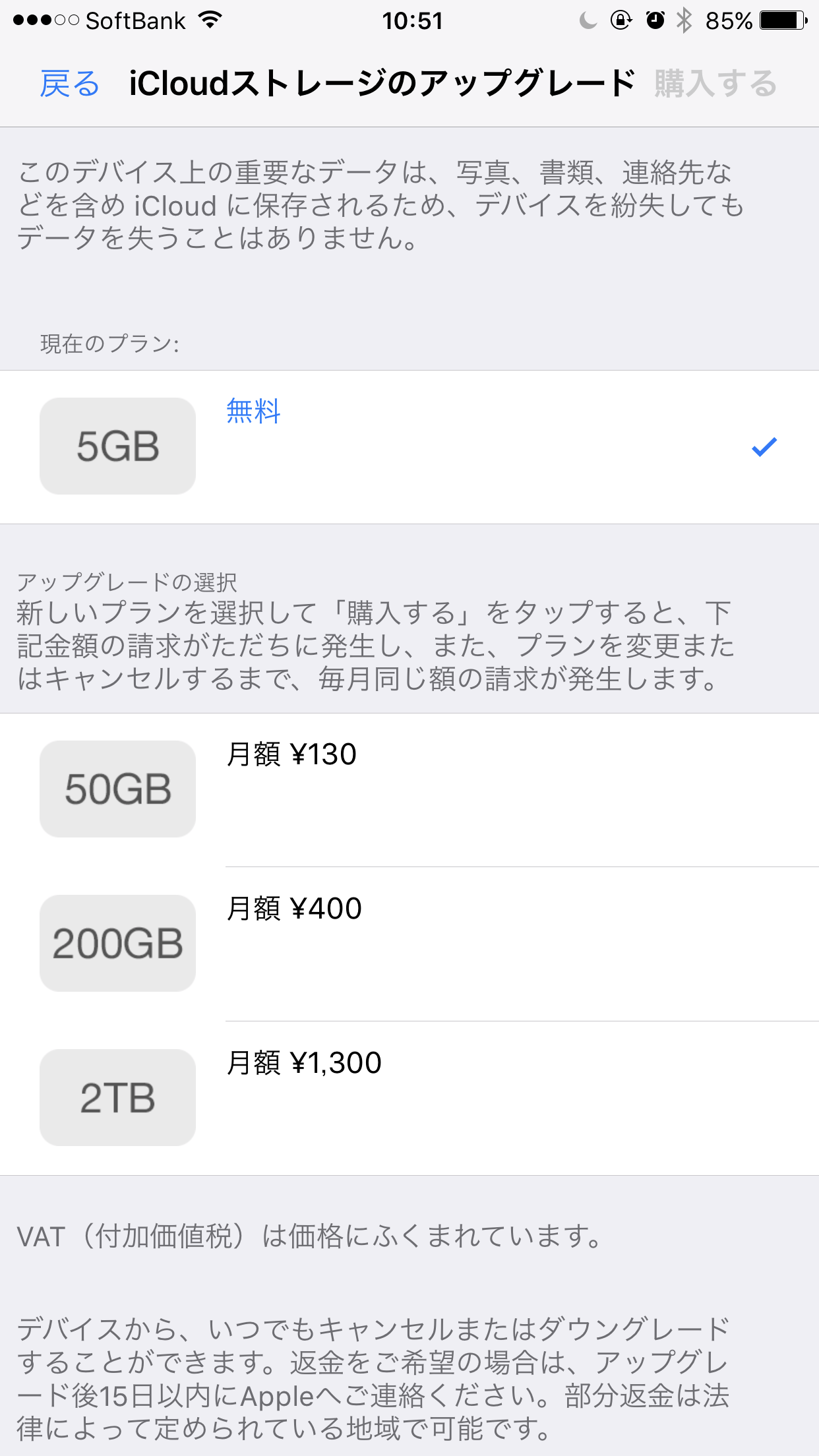
If it isn't enough, you'll need to purchase additional storage.
50GB 130 yen/month
200GB 400 yen/month
2TB 1,300 yen/month
Since there is a monthly fee, if you have a computer I think it's better to back up to your computer. But if you were thinking you'd have to buy a computer just for your iPhone, purchasing storage is by far the better deal.
How to purchase additional storage
You can purchase additional storage from "Settings" → "General" → "iPhone Storage & iCloud Usage" → "Manage Storage" under iCloud → "Change Storage Plan."
Once you've purchased additional storage to match how much you use, go back to the very first screen of the Settings app.
Your name should be displayed at the top, so tap there.
Select "iCloud" and choose the apps you want to back up.
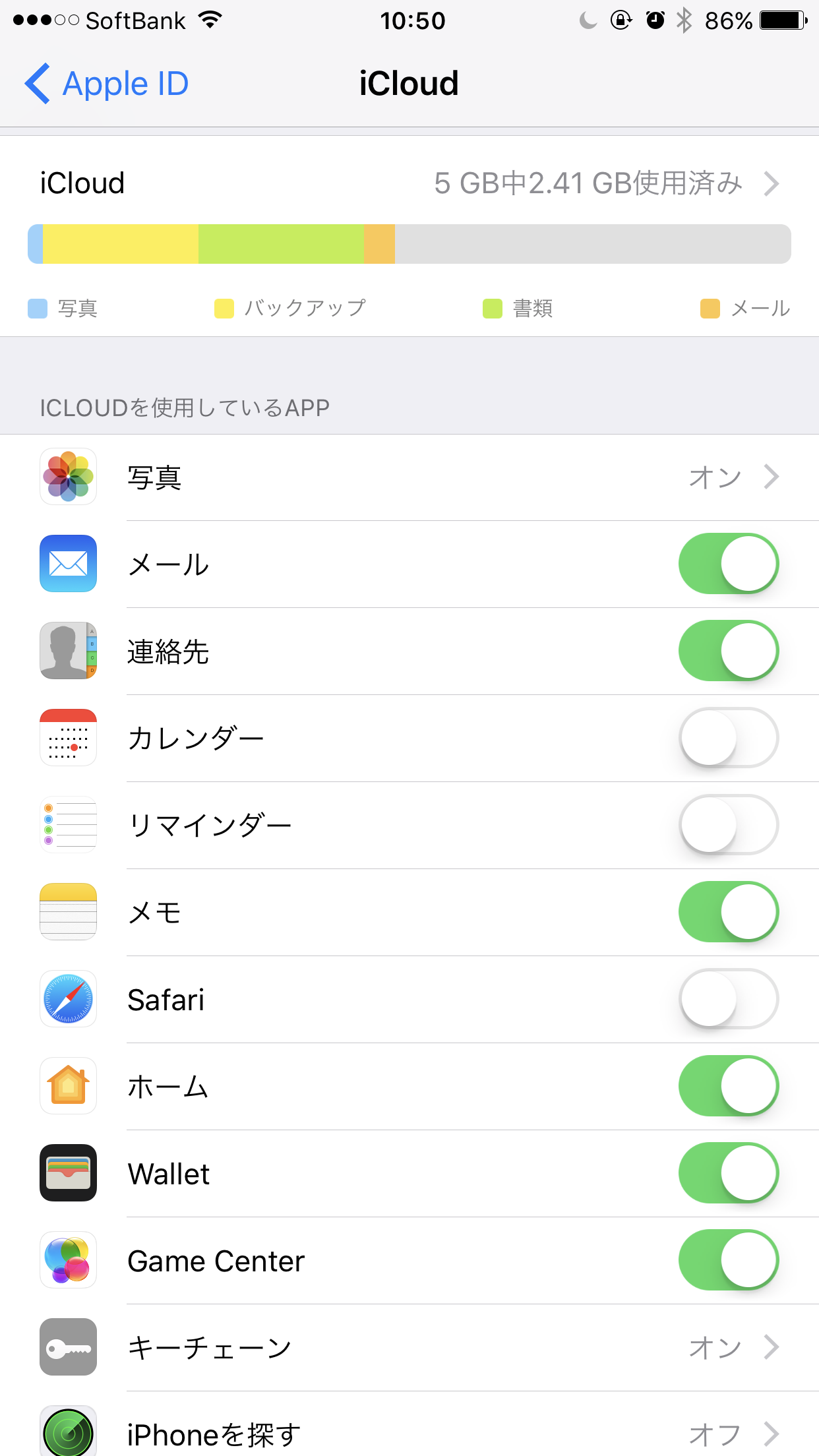
That completes the backup settings.
Finally, open "Settings" → "Your Name" → "iCloud" → "Backup," and turn on "iCloud Backup" to have backups made automatically.
Backups are made when the device is powered on, locked, connected to power, and connected to Wi-Fi.
By selecting "Back Up Now," you can also make a backup whenever you like.
That's it for our introduction to backing up your iPhone without using a computer.


