


Hello. This is Ochiai, the designer.
Today I'll show you how to change the color of part of a photo in Photoshop.
So let's get right to editing this photo.

First, as a safeguard, duplicate the photo layer.
Next, select the area you want to edit to create a selection.
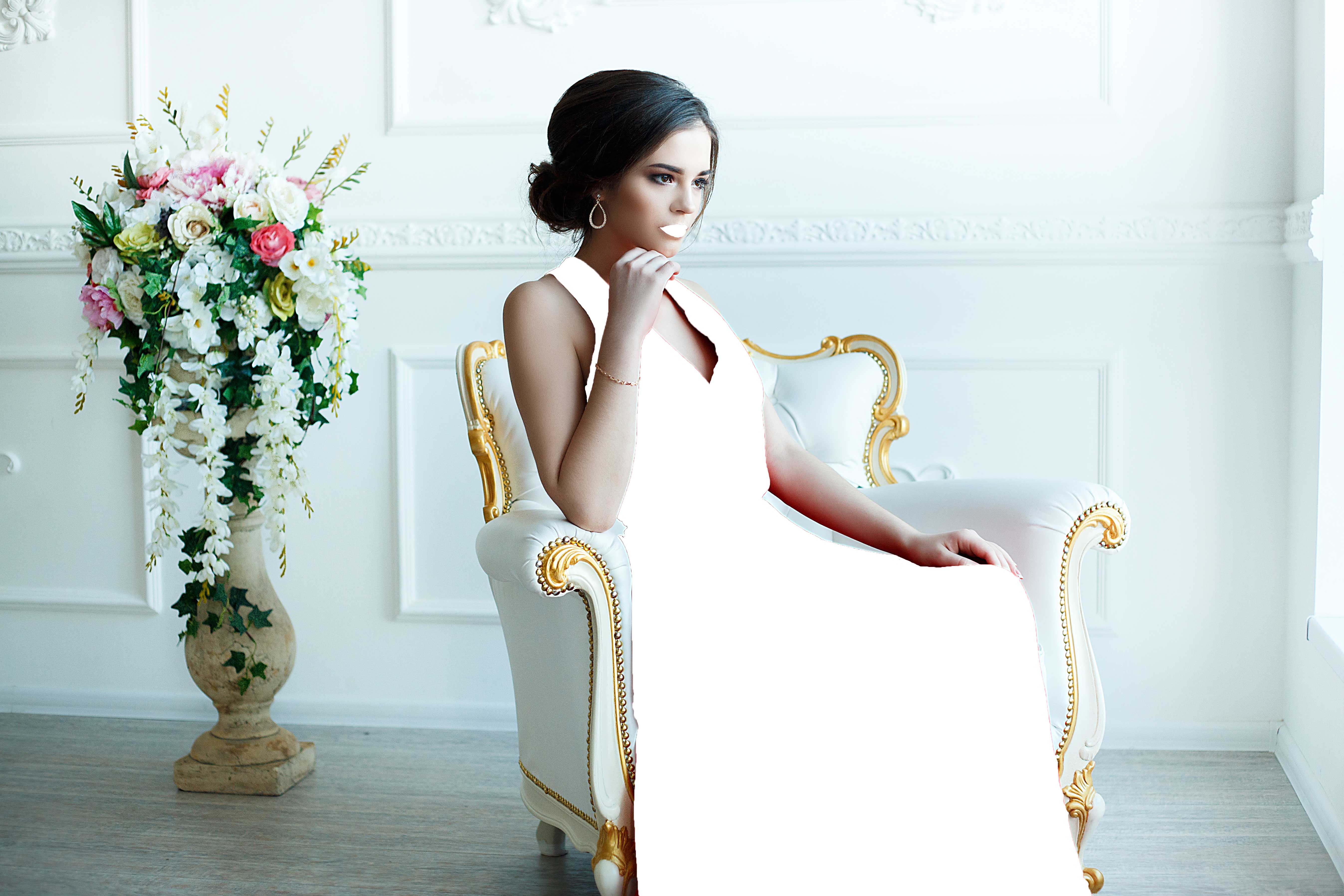
This time I want to make everything except the woman's lips and dress black and white, so I created a selection like this.

Next, select the duplicated layer and create a layer mask. With a layer mask, only the selected portion will be displayed.

Next, create a new adjustment layer and select Hue/Saturation.


Change the Saturation value to -100 to make it monochrome.

Next, create a clipping mask on the Hue/Saturation layer.

And you end up with an image like this.

By applying this technique, you can also do things like this.


By using these four things—selections, layer masks, clipping masks, and Hue/Saturation adjustments—you can create all kinds of variations.
Please give it a try!


