










In this blog post, we'll show you how to add watermarks on a computer using both paid and free software.

Hello, this is Ochiai, the designer.
A watermark is like a signature written onto an image or video, displaying information such as an account name, company name, logo or copyright notice within the image.
This helps deter unauthorized use and reposting without permission.
So what exactly counts as unauthorized use or reposting without permission?
Say, for example, you upload a photo, an illustration or some other work of your own to social media or a blog.
If a third party downloads it to their smartphone or computer and then posts it on social media or a blog, or prints and distributes it, that is “secondary use without the creator's permission.”
It's obvious that using someone else's property without asking is wrong — just think of physical belongings — yet online it happens all the time.
It's not unusual for your own work to be uploaded as someone else's, or for photos of you or your family to be used by complete strangers.
To prevent this, clearly indicating that the work is yours is extremely important.
1. Use Lightroom Classic (paid)
This software is a photo editing tool and is a little different from paint-type software such as Photoshop, but when it comes to polishing what you already have into its best possible form, it's an excellent program with great efficiency and usability. If you already use Lightroom Classic but don't normally use watermarks, do give the method below a try.
Now let's add a watermark using Lightroom Classic.
Launch the software and select the photo you want to edit.

This may be confusing if it's your first time, but to edit a photo in Lightroom Classic you first need to import a folder using the “+” next to “Folders.”
A list of the photos in that folder will then appear at the bottom of the screen, and you can select a photo from there.
The photos in the folder you selected are ready to edit right away, so once the folder is imported there's no “open” step. Lightroom Classic edits while keeping the original photo data intact, so the photo isn't altered at all unless you export it. That means that after editing a photo you need to export it in the format you need. You can add a watermark during this final export step.
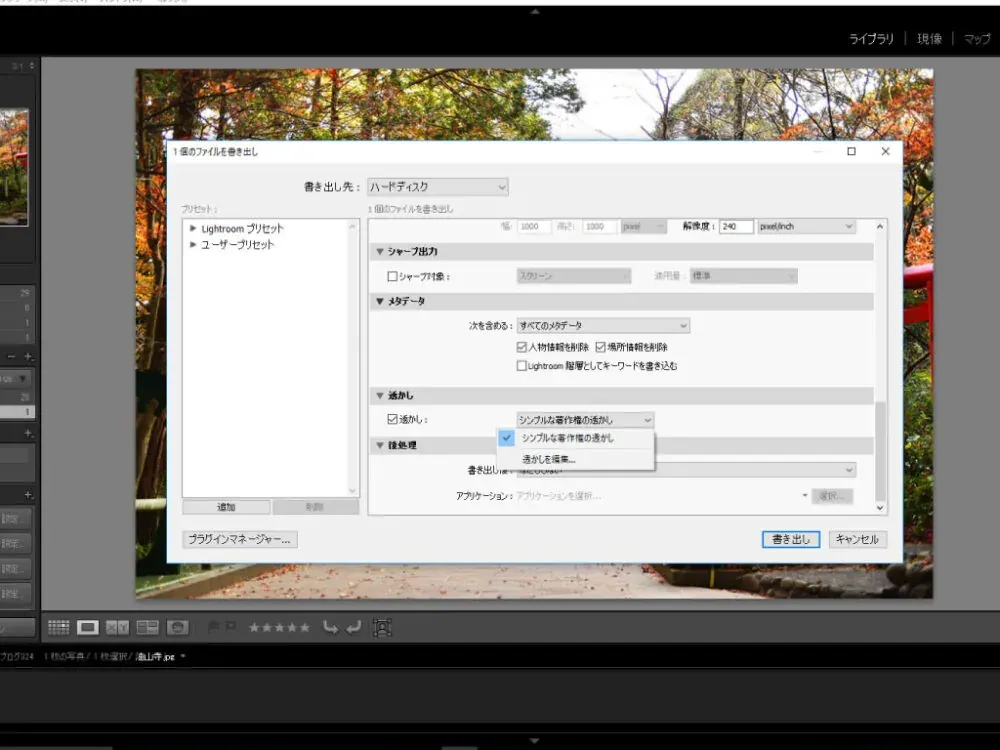
After clicking “Export,” scroll down the screen, check the “Watermarking” option, and select “Edit Watermarks…”
A box like the one in the image will appear, and here you type in the text you want to use as your watermark.
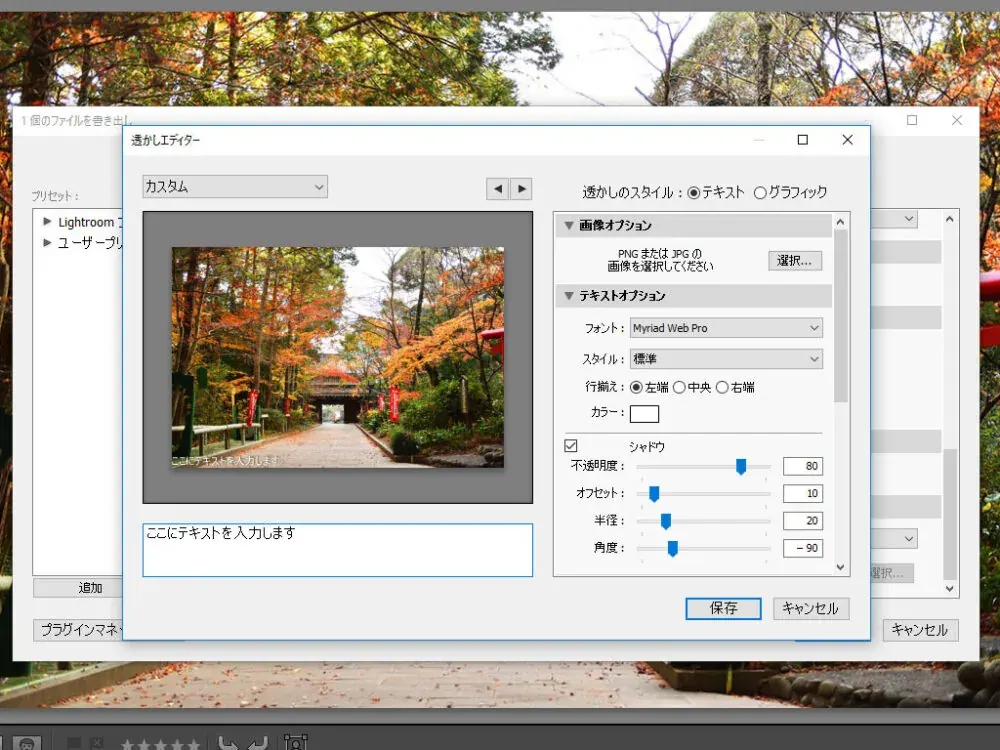
From this screen you can also edit the text size, position, opacity and more.
If you want to insert a logo, select it under “Image Options.”
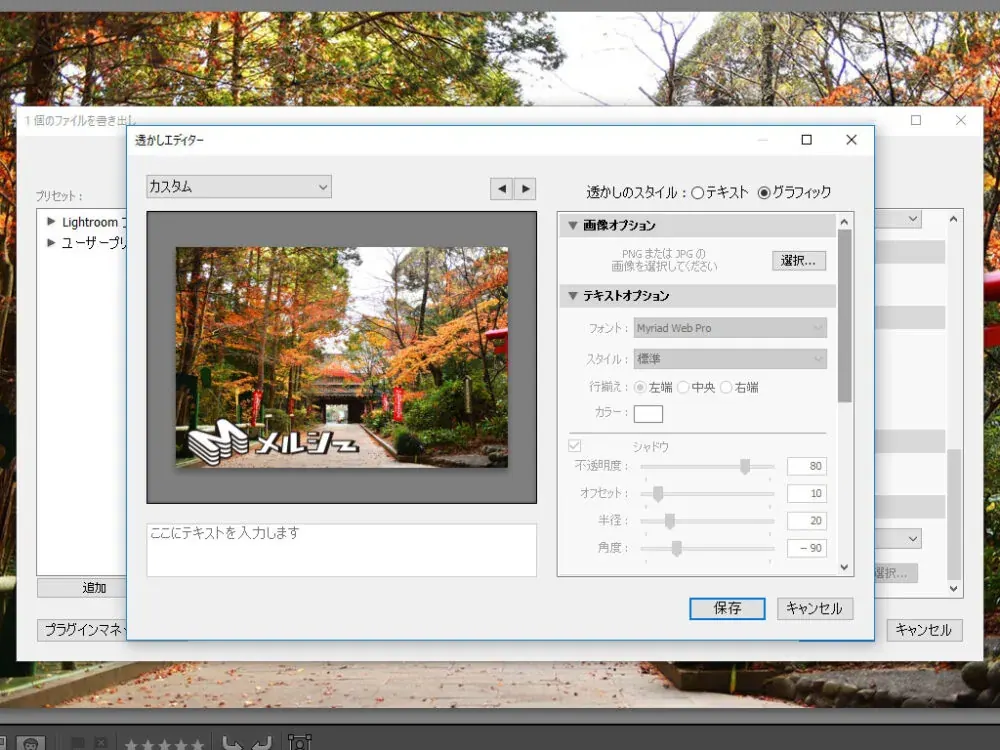
When you have finished editing, click “Done” and then “Export” to complete the process.
Since you can add a watermark while editing your images, this is a very welcome feature for anyone who uses this software regularly.
2. Use Photoshop (paid)
This software is a painting tool, so you can add watermarks exactly as you like.
Whether you use the text tool or draw by hand with a pen tablet, you can freely edit the color, shape, opacity and even the texture. Of course, you can also load a logo and stamp it onto the image.
That said, for Photoshop I would like to introduce a slightly different approach.
Did you know that you can install plug-ins in Photoshop?
Plug-ins are programs used to add features to Photoshop.
Some plug-ins are free: open “Plugins” from the menu on the Photoshop screen and choose “Browse Plugins” to add all kinds of features.
Among them is a plug-in called Digimarc. It writes invisible copyright information into your media, so the copyright data embedded in an image is not lost even if the image is cropped, copied or saved in a different file format.
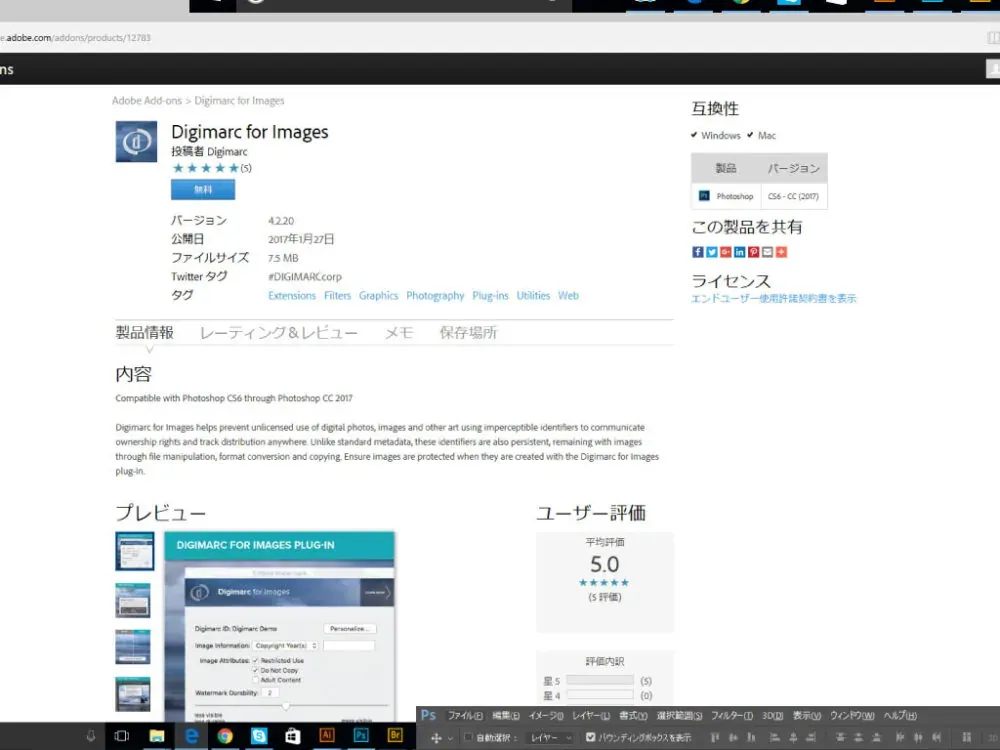
The plug-in itself is free, but to use Digimarc's technology you must register on their site and purchase a license. Licenses are annual and come with a limit on the number of images.
Once you have installed the plug-in, registered a Digimarc account and purchased a license, you can use it from the filters within Photoshop.
Lightroom Classic and Photoshop are themselves paid software, and if you already own them you can add watermarks while editing. But when Digimarc adds yet another license fee on top, the cost may be rather steep for an individual.
So let me introduce an online watermarking service you can use for free.
3. Add a watermark online (free)
There are many tools out there, but I would like to introduce a site called WATERMARK (https://watermark.ws/).

It is easy to use. Once you reach the site, click “Get Started.”

Choose where to load your image from and import it.
When the imported photo appears on the site, hover your cursor over the image.
The word “Edit” will appear, so click it.
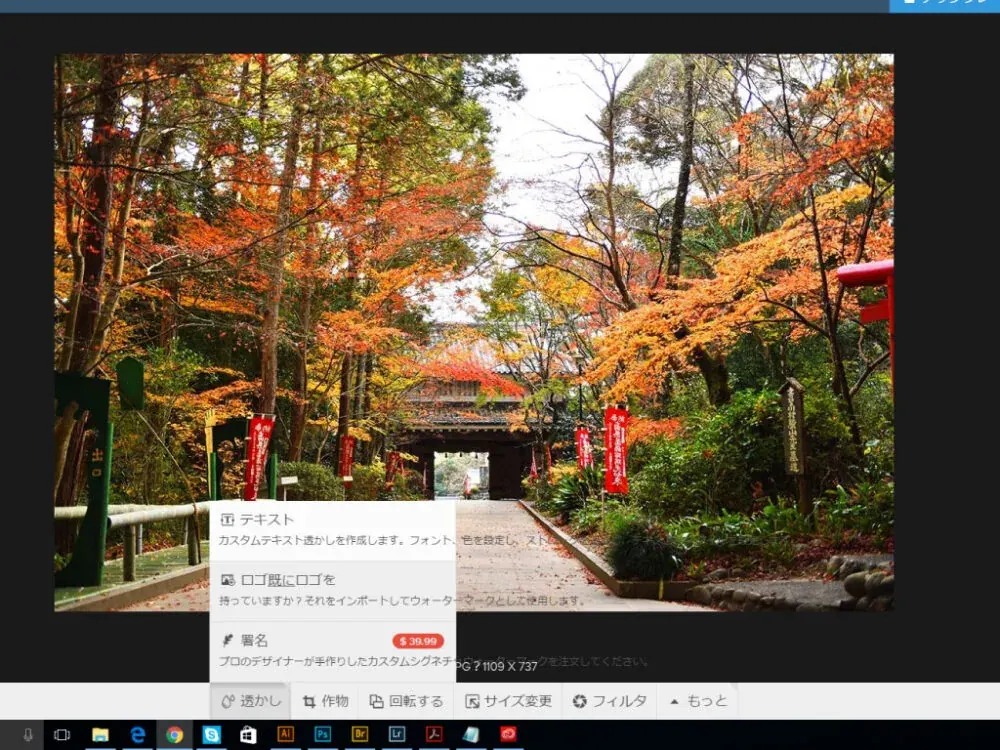
Once you are in the editing screen, select “Watermark” at the bottom of the screen; from there you can choose whether to enter text or insert a logo.

You can change the opacity and of course the color, and you can even tile the logo across the image.
When you are done, click Finish at the bottom right of the screen. Press Download to save the file to your computer, and you are finished.
This service is very easy to understand and anyone with an internet connection can use it, so I highly recommend it.
However, this is not a digital watermark—it simply writes text onto the photo—so there is a risk of unauthorized reuse if the image is cropped. For that reason, I recommend placing it where it is as hard as possible to crop out.
Those are the three methods, and in the previous blog post I also introduced how to do it on a smartphone.
I draw illustrations myself, and I fairly often see people posting someone else's artwork on social media as if it were their own, or using it without permission as an icon or an image on their own website. Illustrators suffer all kinds of harm as well, such as finding their artwork turned into merchandise without their knowledge.
There have even been cases where family photos someone posted were used in scams.
This happened overseas, but there was also a case that caused a stir in which someone posted photos of another person's child claiming it was their own.
In a world where you never know how the photos you post might be used, please find the method that suits you and give watermarking a try.