










When you post photos on your blog or social media, are you aware of the risk that those photos could be used somewhere without your knowledge?

Hello. This is Ochiai, designer.
Lately we hear a lot about content being ripped off online.
Blogs copied word for word, or photos of food, scenery, family and even children posted on Facebook and other social media turning up on the accounts of complete strangers — we hear all kinds of stories.
There have even been cases in the past where someone's artwork ended up being sold as a smartphone case without them ever knowing.
That is why you need to protect not only photos used by companies, but also your own personal photos, against theft.
The tool for doing that is the watermark.
Put simply, it means clearly placing your name on your photos and creative work.
Adding a watermark should go a long way toward preventing unauthorized reposting and reuse.
In this blog I'd like to cover the topic over two parts, explaining how to do it on a computer and how to do it on a smartphone.
Add a watermark to your photos on your smartphone
Let's start with how to do it on a smartphone.
If you don't have a computer, you'll use an app to add watermarks to your photos.
With a computer you can also embed copyright information in the photo's data, but on a smartphone you add a visible signature within the image itself.
Since the image may be cropped, placing the mark where it can't easily be cut off should make it an even stronger deterrent against unauthorized reposting.
There are various methods, but this time we'll use a free app called “snapseed,” which is available for both iPhone and Android.

This app is photo editing and shooting software, not an app dedicated to watermarks. However, it's very easy and intuitive to use and excellent for photo editing as well, so it's definitely worth installing.
When you first launch it, you'll see a screen like this.

Tap “Open” at the top left to select an image.
If you select “Open from device,” you can choose a photo you have already taken and edit it.
Tap “Camera” to launch the camera and shoot in RAW.
This time we will use a photo taken in advance with a smartphone.

This one was shot with a smartphone at Kyotokuike Park in Kakegawa City.
There is text in the lower right of this photo. That is the watermark.
Now let me walk you through how to add a watermark, step by step.
Adding it as text
When you open the image, a pen-like icon appears at the bottom right; tap it to enter the editing screen.

You will then see a screen for choosing editing options like this, so tap “Text.”

Next, as indicated on the screen, double-tap the text to enter your wording.
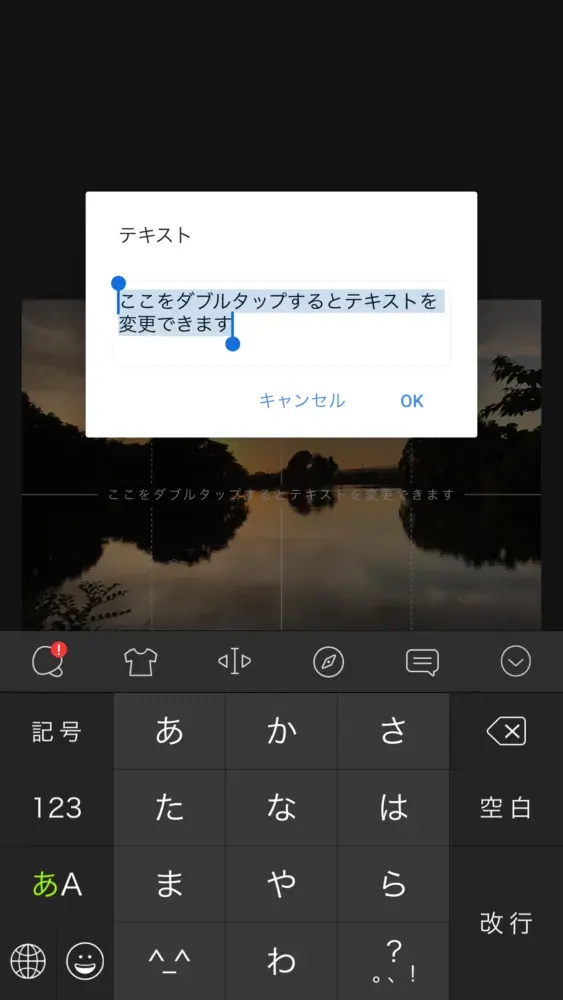
Since this is a watermark, enter your company name, logo, account name, copyright holder name (copyright notice) or your own signature. This time we will enter text rather than a logo.
By selecting the word “line” at the bottom of the screen, you can change the font and style. Slide to the right to see plenty of variations and pick the one you like.

Next, select the droplet-shaped icon in the white area at the very bottom of the screen to change the opacity. This makes the photo underneath show through.
You can move the text with one finger, and adjust its size with two fingers, just as you would zoom in and out on the screen.

Once you have set the size, position and opacity as you like, it is complete. Tap the check mark at the bottom right of the screen to finish the job.
Tap “Save” at the top of the screen to save the edited image to your device.
There are also many color variations, and you can even invert the colors, so you can create images like this one as well.


Adding a logo to a photo
Next, if you want to add a logo rather than text using your smartphone, please refer to the steps below.

Now let's add a logo as shown in the image.
First, save the logo you want to use on your smartphone.
This process is divided into two steps.
1. Making the logo background transparent
Even if you send data with a transparent background from a computer to your smartphone, on many devices the background doesn't stay properly transparent.
So first, we'll use an app that makes backgrounds transparent.
This time we'll use a free app called "Haikei Touka" (Background Eraser), which works on both iPhone and Android.

Once you open the app, select "Open from album" and choose your logo.
If you find yourself thinking, "It should be transparent-background data, but when I saved it on my smartphone there's a white background," the image will automatically be displayed with the background made transparent, so you can simply save it as is.
With photos taken on your phone and other images that don't already have a transparent background, you have to tap the parts you want to erase several times to remove them, so whenever possible use PNG data with a transparent background.
Once the background is transparent, tap the export button at the top of the screen and save the image to your device.
2. Adding the logo
Next, let's add the logo you created in step 1.
From here we'll use an app called "LINE Camera," which works on both iPhone and Android.

Launch LINE Camera and select the photo you want to add the logo to from "Album." Next, tap Edit at the bottom right and select the heart icon among the icons below.

You'll then see a scissors icon, so tap it.

Select "+" and choose the transparent-background logo you just created.
After that, tap the arrow at the bottom right of the box displayed around the logo to adjust its size, and use the sun-like icon at the bottom left to adjust opacity, hue, saturation and brightness.
And it's done.
Once you've created a logo with a transparent background, you can reuse the same one from then on, so from the second time onward you can add the logo using only LINE Camera.
That's how to add a watermark using your smartphone.
These days, many people shoot and edit on their smartphone without using a computer and post straight from there.
However, anyone can save photos posted online, so there is no telling how they might be used.
That is why we encourage you to use watermarks as a safeguard against misuse.
Next time, we will explain how to add a watermark using a computer.